Release Notes - Beta v0.12
Summary
This release brings major enhancements to the Bulk CV Upload system with support for up to 100 files, a two-step review process, and a new Upload History panel for tracking past uploads and retrying failed files.
What's New
- Upload History panel to review past bulk upload sessions and retry failures
- Increased bulk upload capacity from 50 to 100 CVs per batch
Improvements
- Enhanced Job Report with clickable "View Full AI Review" links and detailed candidate evaluations
- Enhanced Bulk CV Upload with two-step file review workflow
- File validation with supported/unsupported status indicators
- Drag-and-drop folder upload with file-level management
Bug Fixes
- Hidden edit button on AI Interview Summary and AI Review Summary views
Enhanced Bulk CV Upload
Upload Up to 100 CVs with a Two-Step Review Process
The Bulk CV Upload feature has been significantly enhanced with a higher file limit, a two-step review workflow, and improved file validation. Recruiters can now upload up to 100 CV files at once with clear visibility into which files are supported before processing begins.
Key Enhancements:
- Increased Capacity: Upload up to 100 files per batch (previously 50)
- Two-Step Workflow: Review and filter files before uploading
- File Validation: Each file is tagged as "Supported" or "Unsupported" instantly
- Unsupported File Management: Remove individual files or all unsupported files at once
- File Size Display: View file sizes in the review step
- Drag-and-Drop: Drag and drop entire folders directly into the upload area
Step 1: Select Files
1. Open the Bulk Upload CVs dialog from the job page
2. Drag and drop a folder or click "Select Folder" to browse
3. All files from the folder are loaded with supported/unsupported status indicators
4. Supported formats (PDF, DOCX) are marked with a green "Supported" badge
5. Unsupported formats are marked with a red "Unsupported" badge
6. Remove individual files using the X button
7. Click "Next: Review Files" to proceed
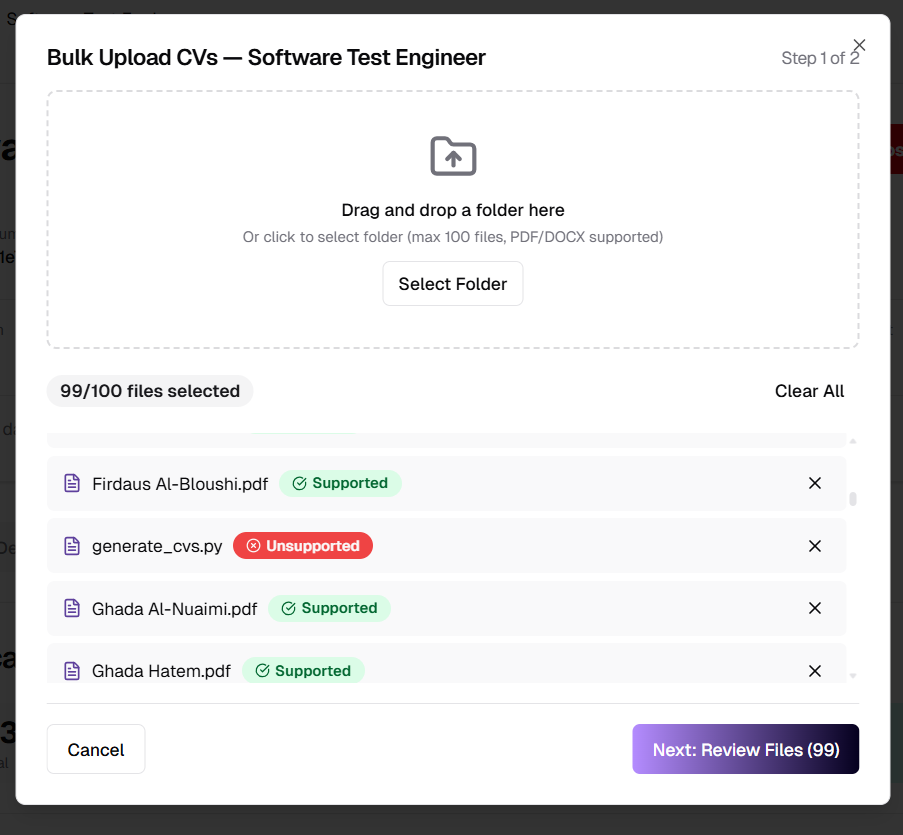
Step 1: File selection with drag-and-drop, showing supported/unsupported file indicators
Step 2: Review Files
1. View a summary bar showing total files, supported count, and unsupported count
2. Filter files by All, Supported, or Unsupported tabs
3. Review unsupported files with their file sizes
4. Click "Remove All Unsupported" to clean up invalid files in one click
5. Click "Upload X Files" to begin processing
6. Go back to Step 1 if adjustments are needed
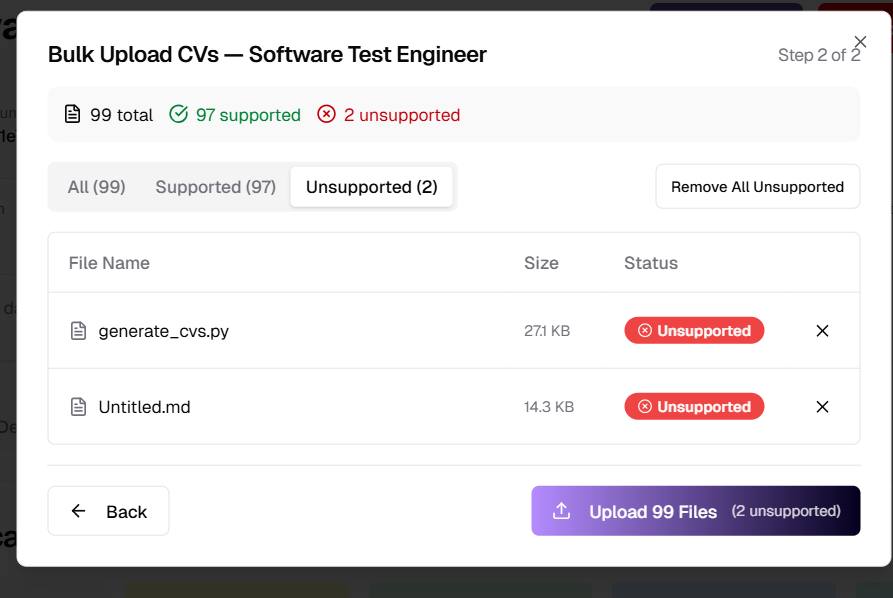
Step 2: File review showing summary, filter tabs, and one-click removal of unsupported files
Benefits:
- Higher Throughput: Process up to 100 CVs in a single batch for high-volume hiring
- Error Prevention: Identify and remove unsupported files before upload starts
- Full Visibility: Clear file counts and status badges at every step
- Efficient Cleanup: One-click removal of all unsupported files saves time
- Better Control: Two-step process gives recruiters confidence in what they're uploading
Upload History
Track Past Bulk Uploads and Retry Failed Files
The new Upload History panel provides a complete audit trail of all past bulk upload sessions. Recruiters can review which CVs were processed, which failed, and retry individual failed files without re-uploading the entire batch.
Core Features:
- Session Timeline: View all past upload sessions sorted by date
- Session Summary: Each entry shows date, file count, processing duration, and status
- Expandable Details: Click any session to view processed candidates and failed files
- Processed Candidates: View candidate names and email addresses for successful uploads
- Failure Reasons: See detailed explanations for why specific files failed processing
- Retry Failed Files: Retry individual failed files directly from the history panel
How It Works:
1. Open the Upload History panel from the job page
2. View a list of all past bulk upload sessions
3. Each session shows: date/time, number of files, processing duration, and completion status
4. Expand a session to see:
- Processed: Successfully processed candidates with their names and emails
- Failed to Process: Files that could not be processed, with a reason and a "Retry" button
5. Click "Retry" on any failed file to reprocess it without re-uploading
6. Close the panel when done
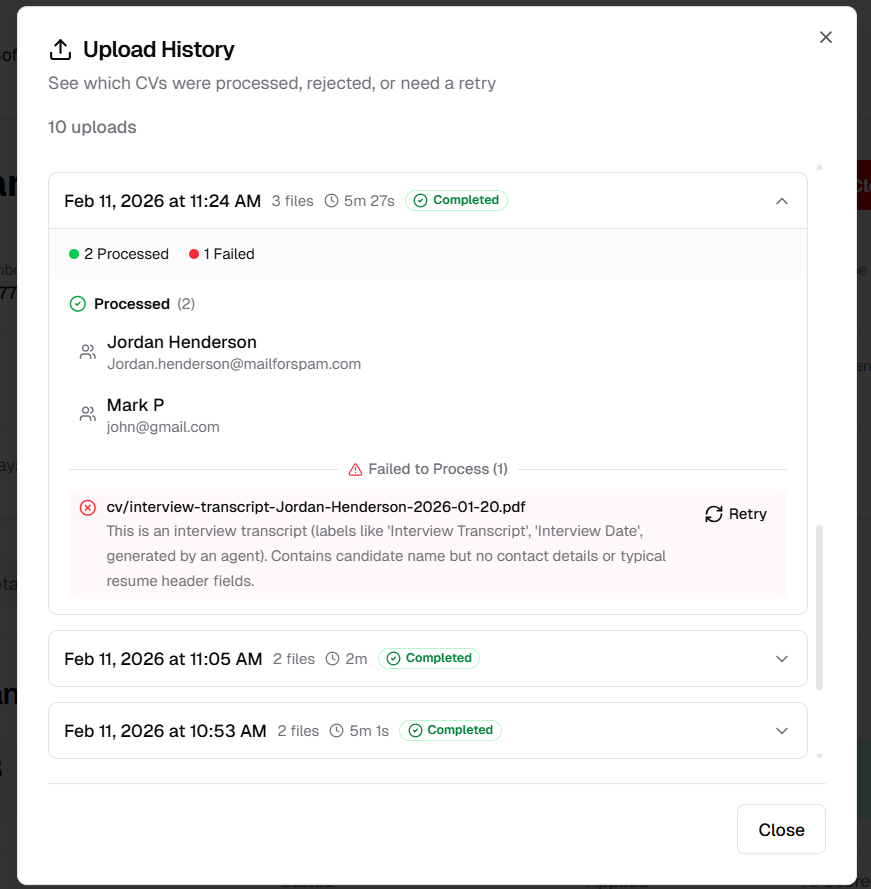
Upload History showing session details with processed candidates, failed files with reasons, and retry option
Benefits:
- Full Audit Trail: Track every bulk upload session with timestamps and results
- Quick Troubleshooting: Understand exactly why files failed with detailed reasons
- Easy Retries: Retry failed files individually without re-uploading the entire batch
- Candidate Verification: Confirm which candidates were successfully created
- Historical Reference: Review past upload volumes and success rates
Enhanced Job Report
View Full AI Review Directly from the Job Report
The Job Report PDF has been enhanced with interactive "View Full AI Review" links for each candidate. Recruiters can now click through from the candidate table to view a comprehensive AI Review Summary page with detailed scoring breakdowns, strengths analysis, and category-level evaluations.
What's New in the Report:
- View Full AI Review Links: Each candidate row in the report now includes a clickable "View Full AI Review" link in the Reason column
- Detailed AI Review Page: Clicking the link opens a full AI Review Summary with comprehensive evaluation data
AI Review Summary Page includes:
Overall Score & Recommendation:
- Overall percentage score prominently displayed
- AI recommendation (STRONGLY RECOMMEND, RECOMMEND, etc.) with detailed reasoning
- Review date for audit trail
Key Strengths & Areas of Concern:
- Bulleted list of candidate strengths identified by AI
- Bulleted list of potential concerns or areas to verify
- Side-by-side layout for quick comparison
Category Scores:
- Skills Match: How well the candidate's technical skills align with job requirements, with matched and missing skills breakdown
- Experience Relevance: Evaluation of work history relevance, years of experience, and career progression
- Education Fit: Assessment of educational background, degrees, and relevant certifications
- Location & Availability: Compatibility with job location, remote work, and timezone considerations
- Overall Potential: Growth potential, cultural fit indicators, and long-term value assessment
Each category includes a percentage score with a visual progress bar and a detailed paragraph explanation.
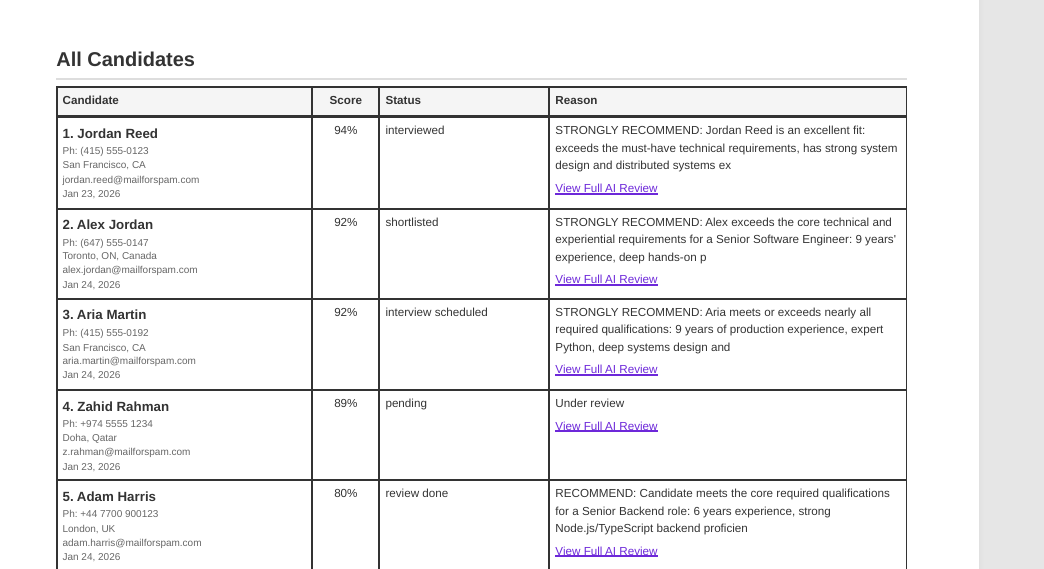
Job Report candidate table now includes "View Full AI Review" links for each candidate
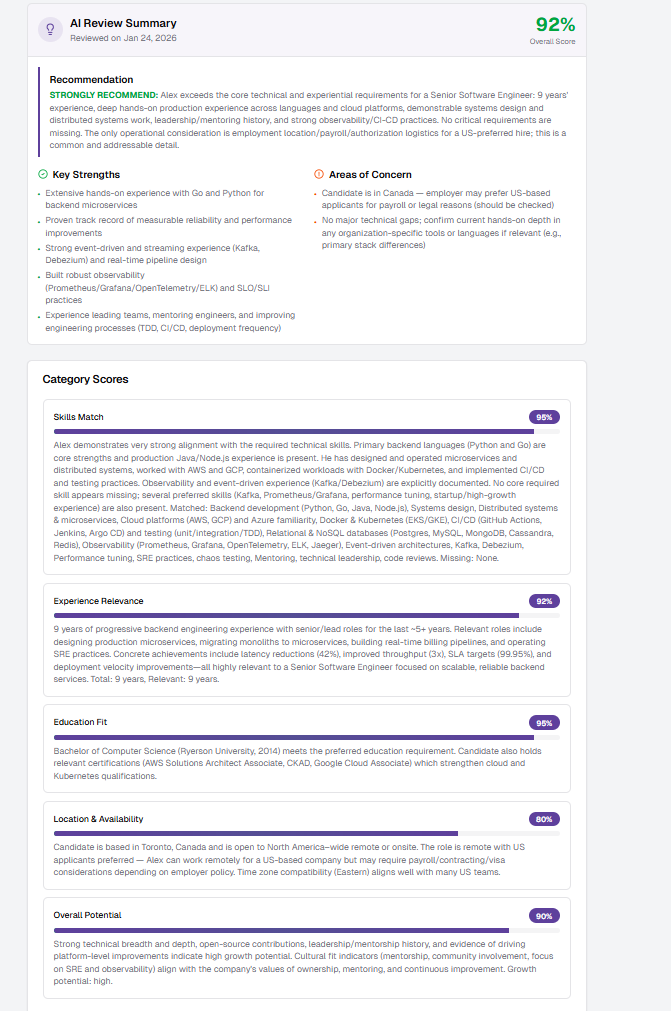
Detailed AI Review Summary showing overall score, recommendation, strengths, concerns, and category-level breakdowns
Benefits:
- Deeper Insights: Access full AI evaluation details directly from the report
- Faster Decision Making: Review comprehensive candidate assessments without switching pages
- Transparent Scoring: See exactly how the AI scored each candidate across multiple categories
- Stakeholder Communication: Share detailed evaluations with hiring managers and teams
- Audit Compliance: Complete documentation of AI-generated candidate assessments
Bug Fixes
UI Improvements
- Hidden Edit Button on AI Interview Summary: Removed the edit button from AI Interview Summary views to prevent unintended modifications to AI-generated content
- Hidden Edit Button on AI Review Summary: Removed the edit button from AI Review Summary views for consistency and data integrity
Released on February 25, 2026
View all releases