Release Notes - Beta v0.13
Summary
This is our biggest release yet, covering everything we've built since Beta v0.12 (Feb 25, 2026). It brings natural voice AI interviews, full Arabic language support, automatic reading of scanned CVs, side-by-side candidate comparison, instant live updates across the app, the ability to re-evaluate applicants, editable AI scores, and many other improvements and fixes from the past seven weeks.
What's New — Interviews & AI
- Natural voice AI interviews that feel like a real conversation
- Candidates can choose Arabic or English before starting their interview
- AI now asks candidates about their salary expectations during the interview
- Watch interview recordings directly in the platform — no downloads or external links
- Higher-quality AI-generated interview questions
- Interview scores now give more weight to how the candidate performed in the interview
- Recruiters can edit AI scores and summaries when they disagree with the AI
- Practice Mode — let the AI play a realistic candidate so recruiters can sharpen their interviewing skills
- Optional video avatar so candidates see a face during the interview
What's New — Candidate & Job Management
- Compare 2–4 candidates side by side in a single view
- Download a detailed PDF report for any individual candidate
- Re-run AI screening on all applicants when a job's requirements change
- Manually change an application's status when needed
- Delete candidate applications individually or in bulk
- Search candidates by name, location, and language
- Filter candidates by any of 13 application statuses
- Quick stats bar showing counts for key statuses at a glance
What's New — CV Upload & Processing
- Automatically read scanned CVs and photo-based PDFs — not just regular text CVs
- Reliably upload 100+ CVs at once without failures or timeouts
- If one CV has a problem, the others still get processed (no more all-or-nothing)
- Automatic duplicate detection — the same CV won't be uploaded twice
- Clear, specific error messages for every file that has a problem
- New "Browse Files" button to pick individual CV files (alongside folder uploads)
- Upload Center widget can now be dragged anywhere on screen so it doesn't block buttons
- Single CV uploads now also check for duplicates
- Support for all common file types with automatic retry for failed files
- Three CVs can now be processed in parallel per user (was one at a time)
What's New — Platform & Localization
- Full Arabic language support across the entire application with right-to-left layout
- Instant live updates across the app — no more waiting for the page to refresh
- A default API key is automatically created for new workspaces
- Team invitation emails with a polished Truepick-branded template
- App version number is now shown in the interface
- Forgot Password flow — users can reset their password themselves
- Better error tracking behind the scenes for faster issue resolution
- Currency selection when sending an offer letter
- Redesigned, cleaner file attachments in the AI Assistant chat
Improvements
- Default salary currency changed from USD to QAR
- Cleaner, more modern fonts throughout the app for better readability
- Sidebar icons are visible even when the sidebar is collapsed
- Your profile picture now shows in the sidebar
- Notification icon moved to a single location in the top bar
- The "Notes" field in the application form is now called "Cover Letter"
- Application timeline now correctly shows progress for rejected candidates
- Improved experience when scheduling interviews for reopened jobs
- Warning shown if your Teams or Outlook account isn't connected
- Confirmation dialog before regenerating an interview link (to prevent mistakes)
- When you edit an AI score, the application status updates automatically
- Duplicate files in bulk upload now show the correct "Duplicate" status
- Search bar text no longer overflows and clears properly after clicking a result
- Arabic interviews now start in Arabic from the very first word
- Removed an incorrect AI message about posting to social media after creating a job
- Offer letter downloads now work reliably
Security & Reliability
- Patched a critical security vulnerability
- Offer letters are now stored securely in the cloud
- Background jobs can no longer get stuck in "processing" — they always complete or fail cleanly
- Many behind-the-scenes fixes for stability and reliability
Natural Voice AI Interviews
Interviews That Feel Like a Real Conversation
Our AI interviewer now sounds and responds much more naturally. Conversations flow smoothly with almost no delay between the candidate speaking and the AI responding — it feels like talking to a real person rather than a robot.
What's Better:
- Much faster responses — the AI replies in about a third of a second, compared to almost a full second before
- Natural turn-taking — the AI knows when the candidate has finished speaking and responds at the right moment
- Candidates can interrupt — just like in a real conversation, candidates can jump in without waiting
- High-quality voice — the AI's voice sounds natural and human
Two Interview Modes:
1. Candidate Mode (default): The AI is the interviewer and the human is the candidate being interviewed
2. Practice Mode: The AI plays a realistic candidate — with a full personality, experience level, strengths, and weaknesses — so recruiters can practice their interviewing skills
Optional Video Avatar: You can enable a lifelike video avatar so candidates see a face during the interview, with lips synced to the AI's voice.
Choose Interview Language (Arabic or English)
Candidates Pick Their Preferred Language Before Starting
Candidates can now choose between Arabic and English before starting their AI interview. The AI interviewer then conducts the entire session — greeting, questions, and follow-ups — in the chosen language from the very first word.
How It Works:
1. Candidate opens the interview join page
2. A simple language selector shows EN and Arabic (ع) buttons
3. Candidate picks their preferred language
4. The AI interviewer greets and asks questions fully in that language
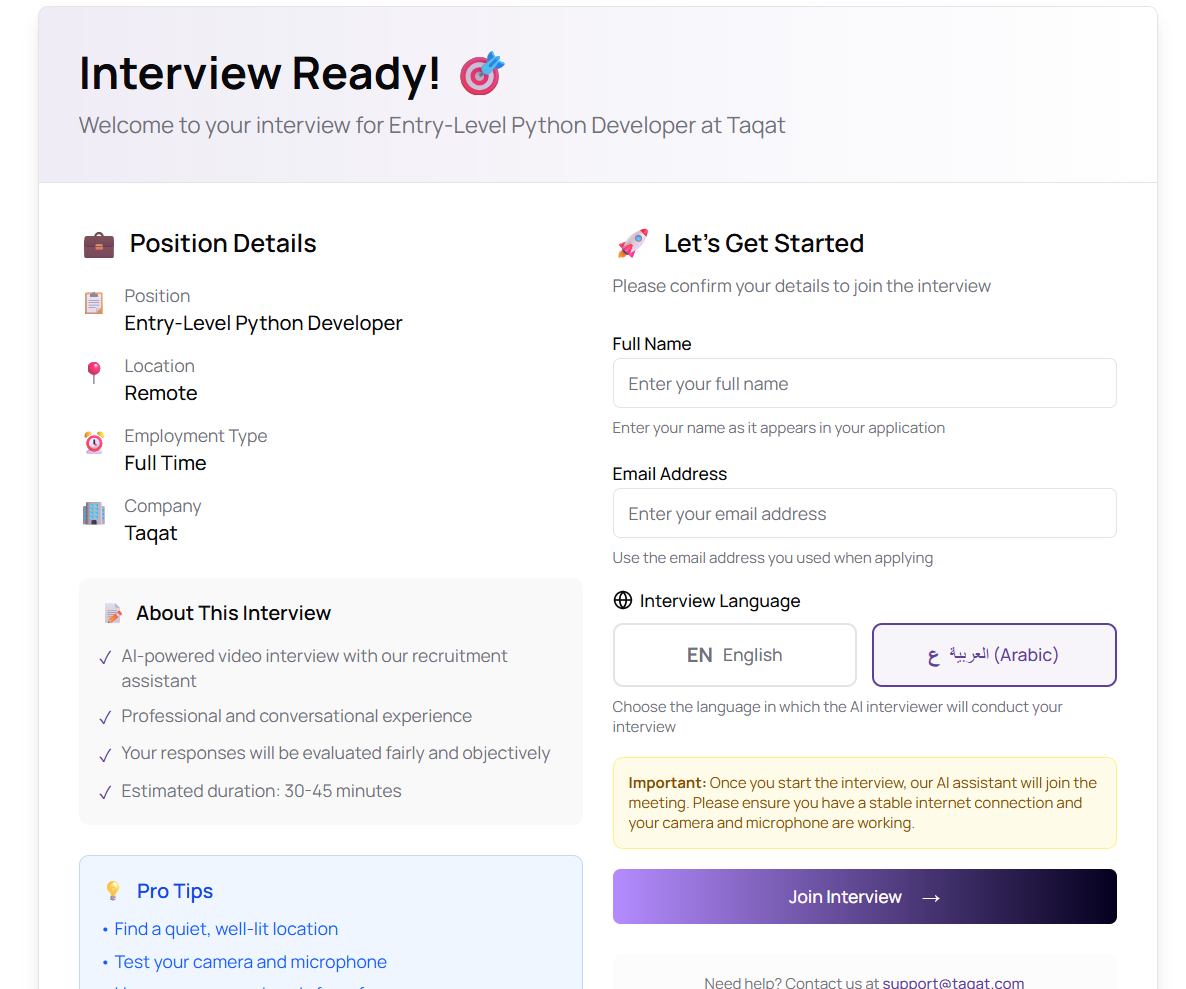
Interview join page with language selector showing English and Arabic options
Salary Expectations in Interviews
AI Now Asks Candidates About Their Salary Expectations
During the AI interview, the interviewer now naturally asks the candidate about their expected salary. The question is worked into the conversation after the job-specific questions and before the closing — for example:
> *"By the way, do you have a salary range in mind for this role?"*
The candidate's answer is captured with the rest of the interview transcript, so recruiters can review salary expectations alongside the full conversation. The AI simply notes the response without negotiating or judging.
Interview Recording Playback
Watch Interview Recordings Inside the Platform
After an AI interview is completed, recruiters can now watch the recording directly within the candidate's action menu — no downloads, no external tabs, no extra links.
How It Works:
1. Open the three-dot menu on any candidate who has completed an interview
2. Click View Recording
3. A video player opens right inside the platform — watch the full interview inline
4. Only authorized team members can view recordings for their company's candidates
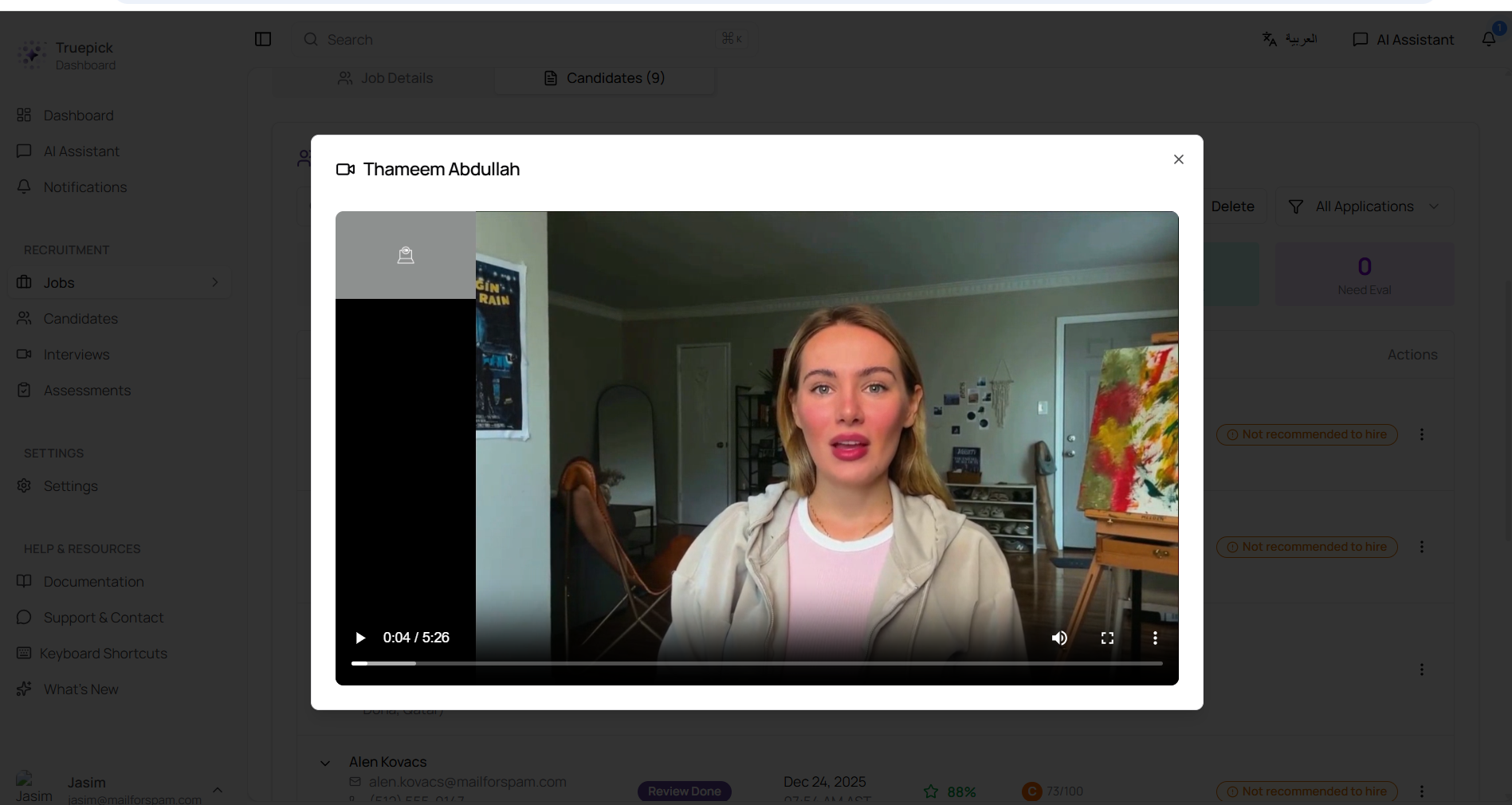
Interview recording popup showing a candidate's video playback within the platform
Editable AI Scores & Summaries
Adjust AI Evaluations When You Disagree
Recruiters can now manually edit the AI's scores, grades, and recommendations — useful when you have additional context the AI didn't consider. Every change is logged with a full history so you can always see who changed what and when.
What You Can Edit in the AI Interview Summary:
- Overall evaluation: score, hiring grade (A+ to F), recommendation (hire / maybe / not hire), and written assessment
- Detailed scores: Technical Skills, Experience Relevance, Interview Performance, Cultural Fit, and Growth Potential
- Lists: Key Strengths, Areas of Concern, Interview Highlights, and Recommendation Reasoning
What You Can Edit in the AI Review Summary:
- Overall review score
- Recommendation text
- Key Strengths and Areas of Concern
How It Works:
1. Click the Edit button to open the edit window
2. Drag sliders to change scores, type in text boxes, pick grades from dropdowns
3. Click Save Changes
4. The candidate's application status is automatically updated to match the new scores
Only the job owner can edit AI evaluations, and every change is tracked for compliance.

Edit window for AI Review Summary showing score slider, recommendation text, and editable strengths/concerns
Candidate Comparison
Compare Candidates Side by Side
Recruiters can now pick 2–4 candidates and view them side by side in a single comparison screen. This makes shortlisting decisions much faster — you can see everyone's strengths, weaknesses, and scores at a glance.
How It Works:
1. Click the Compare button in the applicants toolbar
2. Select 2 to 4 candidates using the checkboxes
3. Click Compare (N) to open the comparison view
4. Review candidates across every evaluation dimension
5. Shortlist or reject candidates directly from the comparison view
What You Can Compare:
- Application date and current status
- AI recommendation summary
- AI screening score (with best and worst highlighted per row)
- Key strengths and areas of concern
- Skills
- Shortlist / Reject actions for each candidate
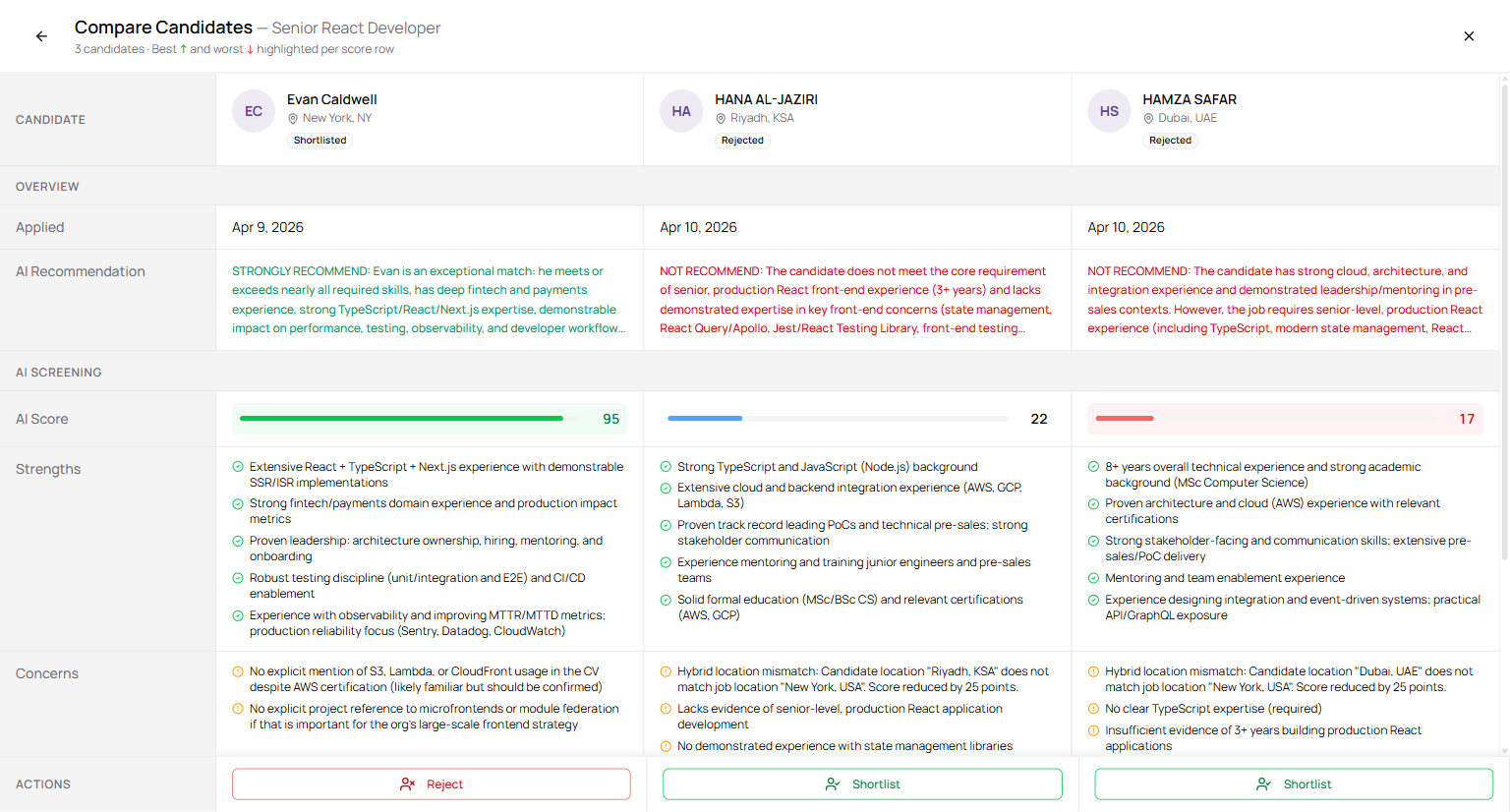
Side-by-side comparison of 3 candidates showing AI scores, recommendations, strengths, concerns, and skills
Download Individual Candidate Reports
One-Click PDF Reports for Any Candidate
Each candidate's three-dot menu now has a Download Report button that generates a comprehensive PDF for that specific candidate. The PDF also includes a link to a private online AI Review page for deeper inspection.
The Report Includes:
- Candidate overview — name, contact details, location, skills
- AI review summary with score and recommendation
- Assessment results (if completed)
- Interview evaluation and score breakdown
- Cover letter (if provided)
- Job details and match analysis
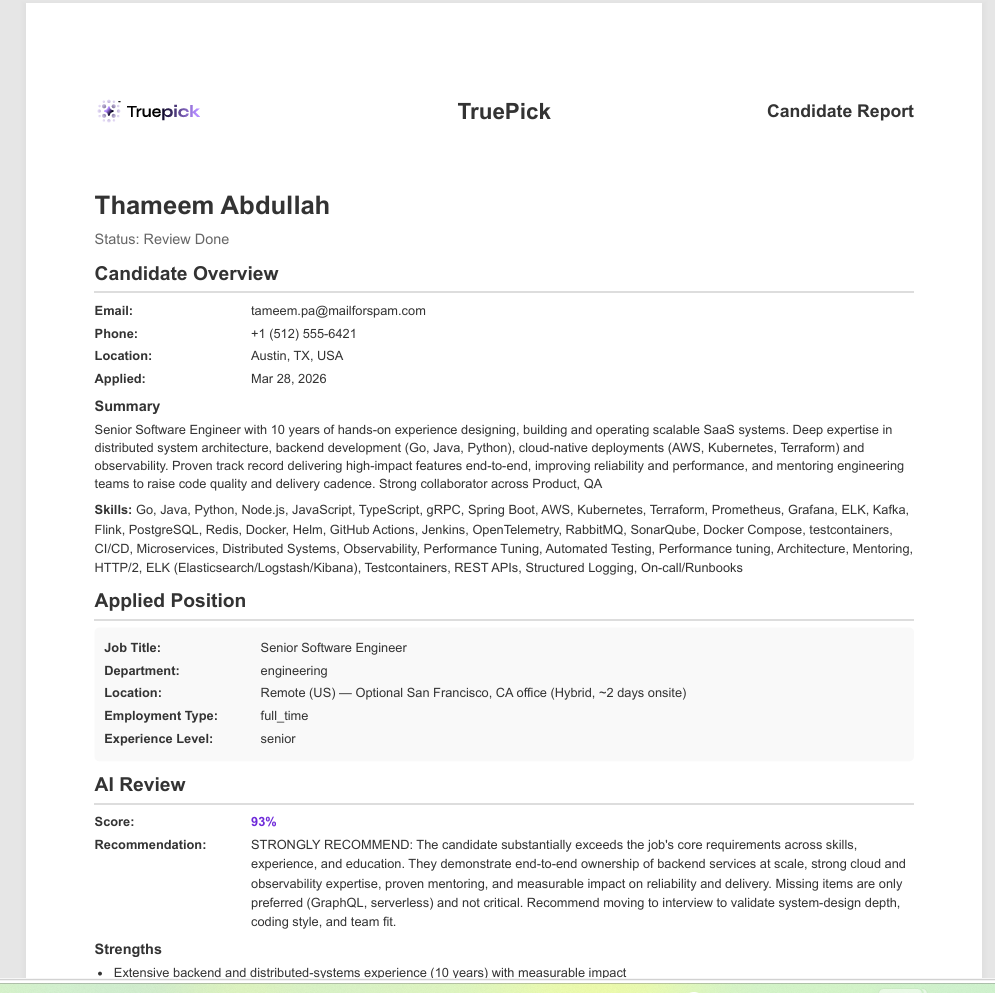
Generated candidate report showing overview, AI Review score, strengths, concerns, and interview evaluation
Re-Evaluate Applicants (Rescan)
Re-Run AI Screening on Existing Applicants
When you update a job's requirements — or when the AI models improve — you can now re-run the AI screening on all existing applicants for that job. No need to re-upload any CVs.
Key Benefits:
- Fast — applicants are processed in parallel, not one at a time
- Live progress — watch the rescan status update in real time
- Progress stays visible from start to finish, even if you navigate away
- Manual status control — recruiters can override an application's status during or after the rescan
Candidate Deletion
Delete Applications Individually or in Bulk
Recruiters can now remove candidate applications either one at a time or in bulk, with confirmation safeguards to prevent accidents.
Delete One Candidate:
- Open the three-dot menu on any applicant
- A confirmation dialog appears before anything is deleted
- The candidate record, their applications, and their photo are all cleaned up
Delete Many Candidates:
- Switch on Delete Mode to show checkboxes next to each applicant
- Use Select All to pick every visible application
- Click Delete Selected — up to 200 applications can be processed at once
- A confirmation dialog shows exactly how many will be deleted
Safety Features:
- You must always confirm before anything is deleted
- Only candidates from your own company can be deleted
- The Remove Application action is hidden for candidates who have already been sent an offer letter — preventing accidents on offered candidates

Job applicants table in delete mode with multi-select checkboxes and "Delete Selected" action
Search & Filter Candidates
Find the Right Candidate Faster
The job applicants tab now has a search bar and filter dropdown, making it easy to find specific candidates in large applicant pools.
Search By:
- Candidate name
- Location
- Languages spoken
Search results update as you type, and matching is not case-sensitive.
Filter By Status:
Filter applicants by any of 13 statuses — All, Pending, Reviewing, Awaiting Assessment, Assessment Completed, Shortlisted, Interview Scheduled, Interviewed, Awaiting Evaluation, Review Done, Offered, Rejected, Withdrawn.
Smart Sorting: Results are automatically sorted by AI review score (highest first), then by application date (newest first). Candidates without scores appear at the end.
Quick Stats Grid: A statistics bar at the top shows counts for Total, Pending, Shortlisted, Interviewed, Review Done, and Awaiting Evaluation.

Job applicants tab with search bar, status filter dropdown, and quick stats grid
Reading Scanned & Image-Based CVs
We Can Now Read CVs That Aren't Regular Text PDFs
Previously, if a CV was a scanned document or a photo-based PDF (the kind where the text is actually an image), our system couldn't read it. Now we can.
When a CV is uploaded, we try several methods to read the text — from the fastest, standard method all the way to advanced image recognition for scanned documents. This means almost any CV, no matter how it was created, can now be processed automatically.
What This Means For You:
- Upload scanned CVs, photo-based PDFs, or CVs created by converting images — they all work now
- All extracted information (name, email, phone, experience, education, skills, etc.) is available for review and editing
- Supported formats: PDF (regular and scanned), DOCX
Fields We Automatically Extract:
Name, email, phone number, location, LinkedIn, portfolio, professional summary, work experience, education, skills, and languages — all editable after extraction.
Reliable Bulk CV Upload
Upload 100+ CVs at Once Without Problems
The bulk CV upload has been completely reworked to handle large batches reliably. Previously, uploading 100 CVs at once would often fail or time out. Now it just works.
What's New:
Upload 100+ CVs in One Go
Large batches are automatically split up and uploaded in smaller groups behind the scenes, so you never hit a timeout. A live progress bar shows you exactly how far along the upload is.
One Bad File Won't Break the Batch
If one CV has a problem, all the other valid CVs still upload and get processed. Previously, a single problematic file would reject the entire batch.
Automatic Duplicate Detection
The same CV can't be uploaded twice. If a duplicate is found — even across different file names — it's flagged with a clear "Duplicate" badge and excluded from the upload. A notification tells you how many duplicates were detected.
Clear Error Messages for Every File
Instead of a generic "failed" message, you now see exactly why each file had a problem:
| File Issue | You'll See |
|---|---|
| Empty file | "File is empty (0 bytes). Please upload a valid CV file." |
| Wrong format | "File format '.xyz' is not supported. Please upload PDF or DOCX files." |
| Too large | "File exceeds maximum size of 5MB. Please compress or reduce file size." |
| Duplicate | "Duplicate file detected (matches existing file content)." |
New "Browse Files" Button
You can now pick individual CV files directly using a new Browse Files button, alongside the existing folder picker. You have three ways to add files:
- Drag and drop files or folders
- Select Folder to pick an entire folder
- Browse Files to pick specific PDF or DOCX files
Other Improvements:
- Three CVs can now process in parallel per user (previously one at a time)
- Duplicate files now correctly show "Duplicate" instead of getting stuck on "Pending"
- Progress bar reaches 100% correctly when all non-duplicate files are done
- Single CV uploads also check for duplicates now
- Upload history no longer shows missing data
- Long-running extractions no longer time out silently

Bulk upload showing color-coded badges — Supported, Duplicate, and Empty files
Draggable Upload Center Widget
Move the Upload Widget Out of the Way
The upload progress widget at the bottom-right was sometimes blocking important buttons like "Create Job" or "Publish Job". You can now drag it anywhere on the screen.
- Click and drag the widget's header to move it wherever you like
- It stays within the screen so it never disappears off-edge
- Buttons inside the widget (close, expand, collapse) still work normally
- When you clear all uploads, it resets to the default bottom-right corner
Full Arabic Language Support
Use Truepick Entirely in Arabic
The entire application now works in Arabic, with a proper right-to-left layout that feels native for Arabic speakers.
What's Covered:
- Every screen is translated — over 2,700 text items including navigation, login, job management, candidate profiles, interviews, assessments, settings, notifications, toast messages, and error messages
- Right-to-left layout — the entire interface flips automatically when you switch to Arabic
- Native Arabic font — Noto Sans Arabic for beautiful, clear rendering
- Web addresses match the language — for example `/ar/jobs` for Arabic and `/en/jobs` for English
- Chat messages now display correctly in Arabic mode
- AI Job Generator dialog is fully translated
- Arabic layout fixes applied across 40+ screens
Supported Languages:
| Language | Layout Direction |
|---|---|
| English | Left to right |
| Arabic | Right to left |
You can switch between languages at any time without reloading the page.
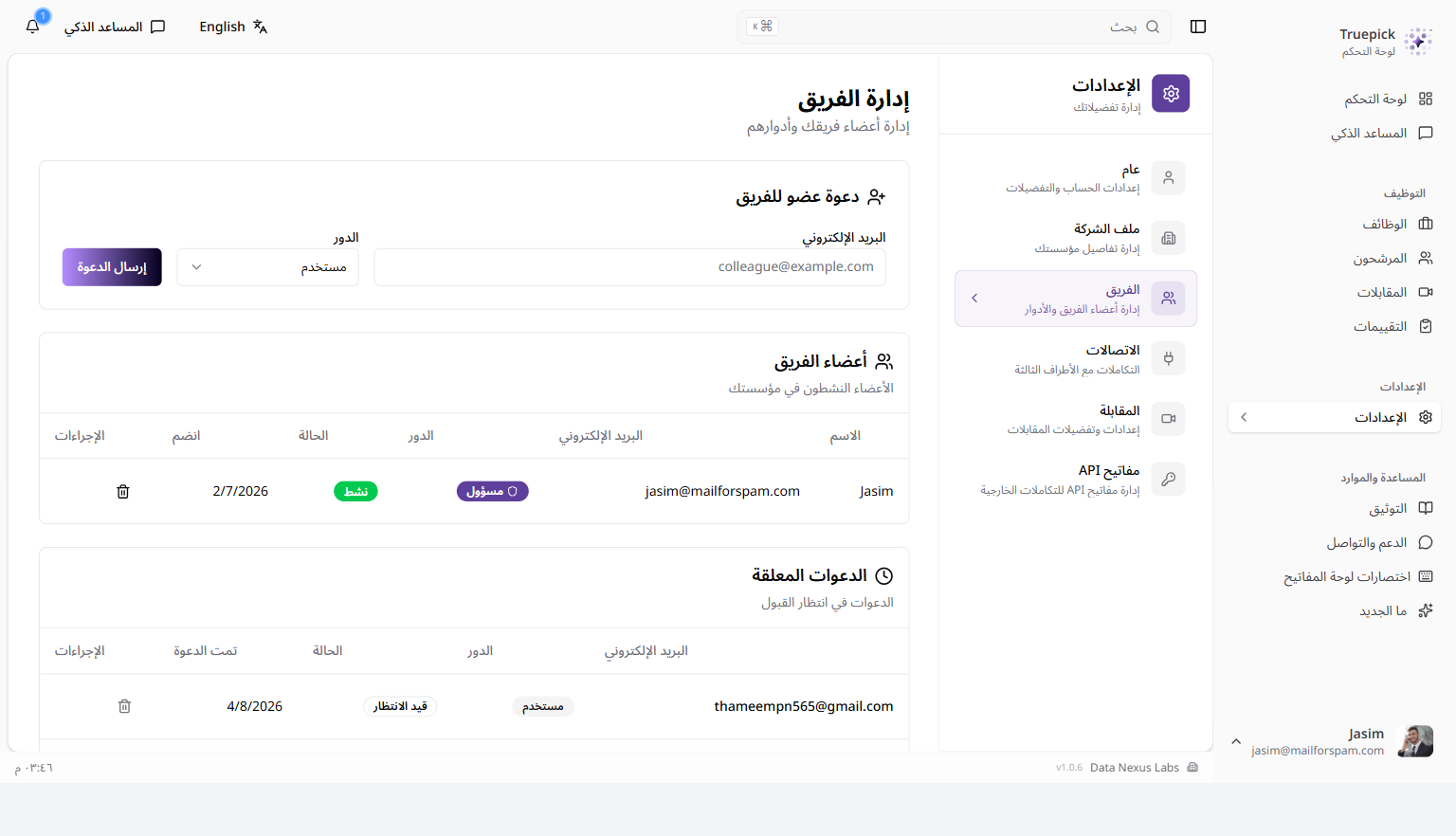
Team Management page in Arabic with full right-to-left layout and properly mirrored interface
Instant Live Updates Across the App
No More Waiting for the Page to Refresh
The entire app now updates instantly when things change. Previously, parts of the app would check for updates every few seconds — now updates appear the moment they happen.
What's Now Live:
| Where | Before | Now |
|---|---|---|
| Upload Center | Checked every 2 seconds | Instant |
| Candidate scan progress | Checked every 5 seconds | Instant |
| Upload history dialog | Checked every 10 seconds | Instant |
| Job applicants list | Checked every 10 seconds | Instant |
| Notifications | Checked periodically | Instant |
| Rescan progress | Didn't exist | Instant |
You'll Notice:
- Upload progress updates immediately, not every few seconds
- Notifications pop up the moment they happen
- The applicants list refreshes automatically when new candidates come in
- The experience feels significantly snappier overall
Team Invitation Emails & Improved UI
Polished Invitation Flow That Actually Sends Emails
The team invitation flow has been overhauled with working email delivery and a cleaner management interface.
Email Improvements:
- Invitation emails now send successfully (previously they weren't being delivered)
- Professional email template with Truepick branding
- Works correctly in Gmail, Outlook, and Apple Mail
- Includes the workspace name, inviter name, and an accept link
UI Improvements:
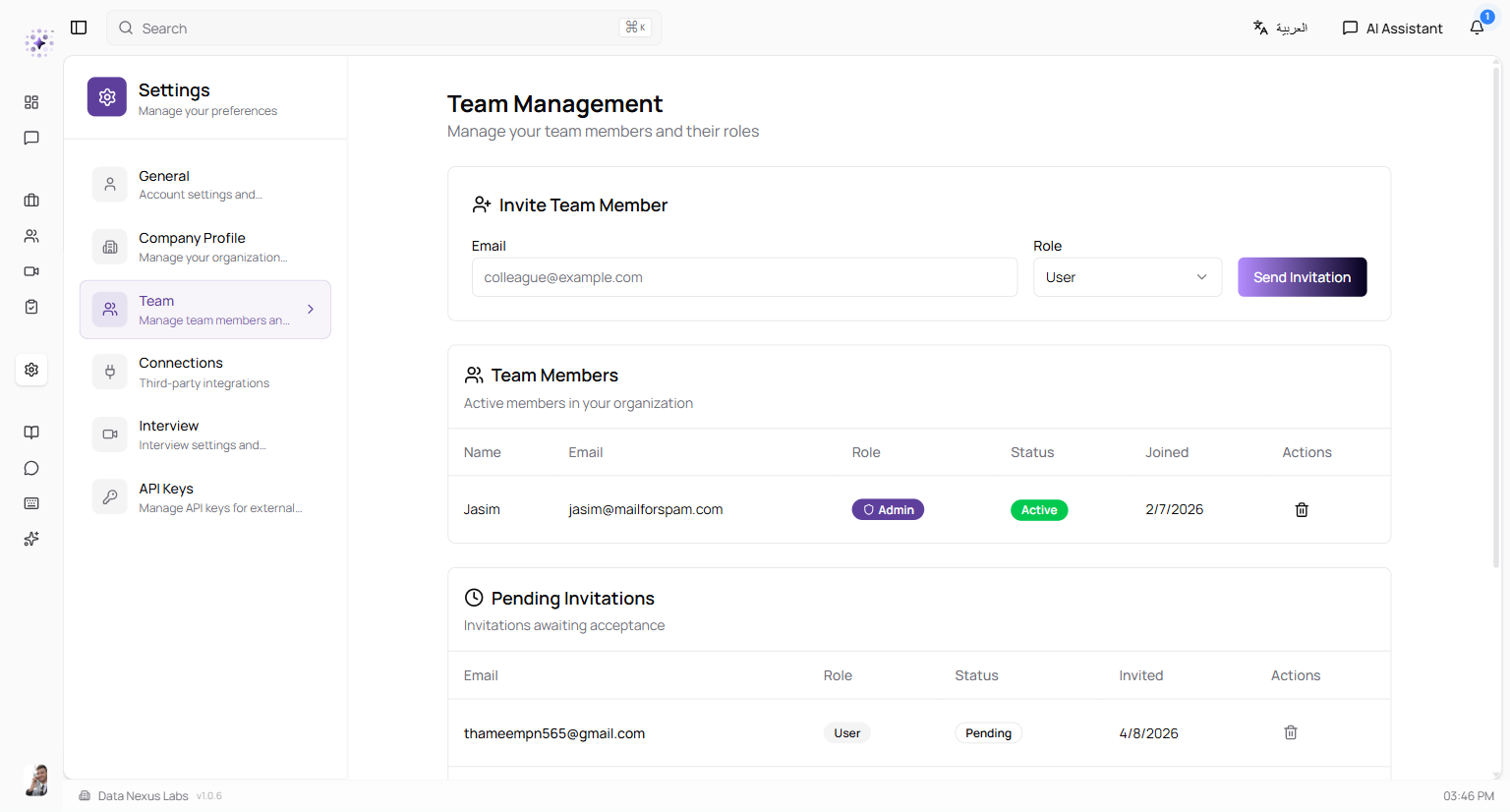
- Invite Team Member section with email input, role selector, and Send Invitation button
- Team Members section showing active members in a clean table
- Pending Invitations section with status and cancel action
- The Send Invitation button shows a loading state to prevent duplicate clicks
- Fully translated in both English and Arabic
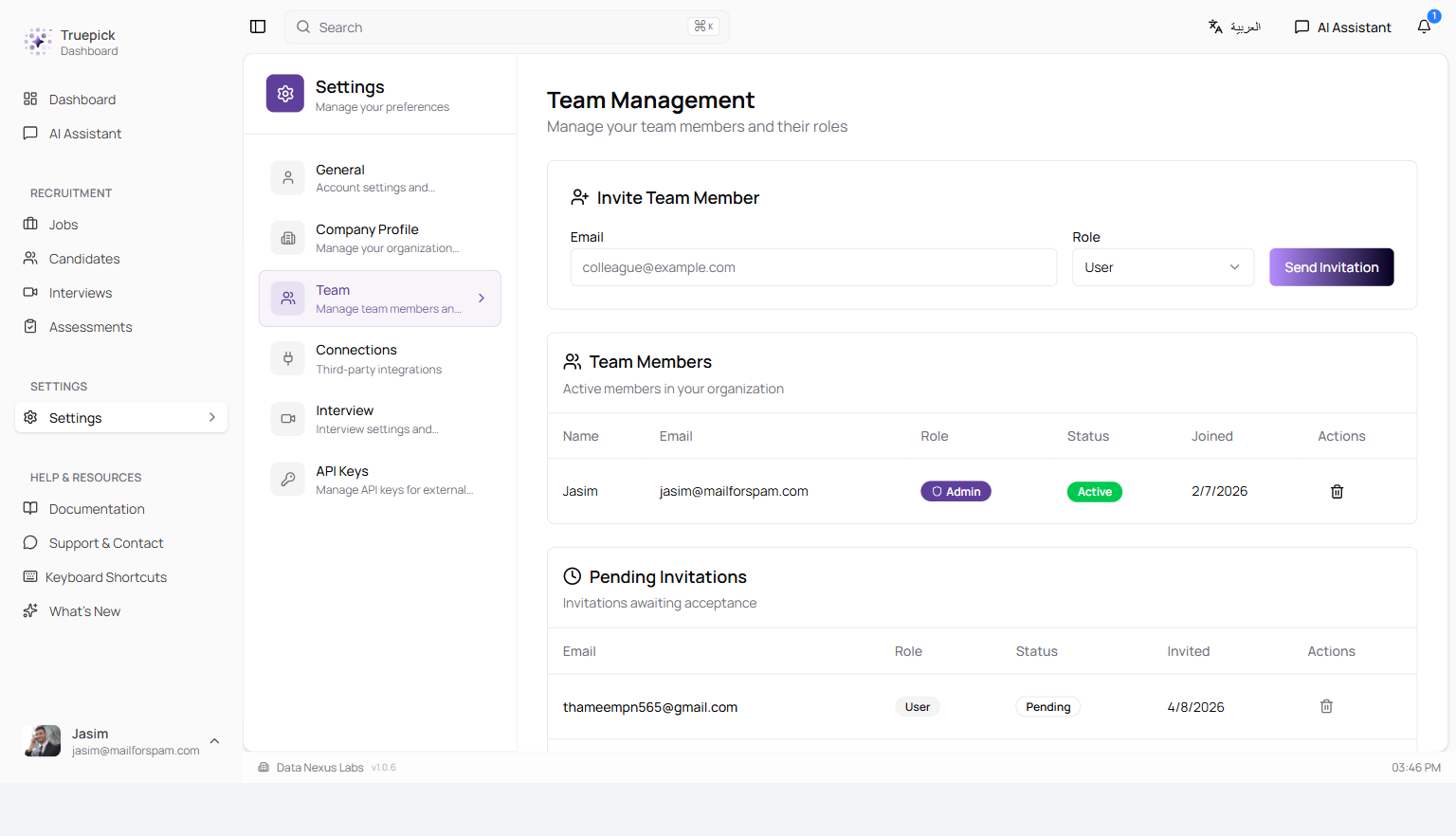
Team Management page with Invite Team Member form, Team Members table, and Pending Invitations section
Automatic API Key for New Workspaces
No Setup Needed for Integrations
When a new workspace is created during onboarding, an API key is now generated automatically. This key is needed for interview webhooks and external integrations — so new workspaces are immediately ready to use without any manual setup.
- Named "Default API Key" with 1-year validity
- Accessible in Settings → API Keys for viewing, rotating, or revoking
Forgot Password
Reset Your Password Yourself
Users can now reset their own password without contacting support.
- "Forgot Password" link added to the login page
- You receive a secure reset link by email
- Enter a new password on the reset page
- Reset links expire after a short time for security
Redesigned File Attachments
Cleaner Attachment Display in the AI Assistant
File attachments in the AI Assistant chat now appear as compact, color-coded pills — showing a file icon, truncated file name, size, and a remove button. Much cleaner than before.
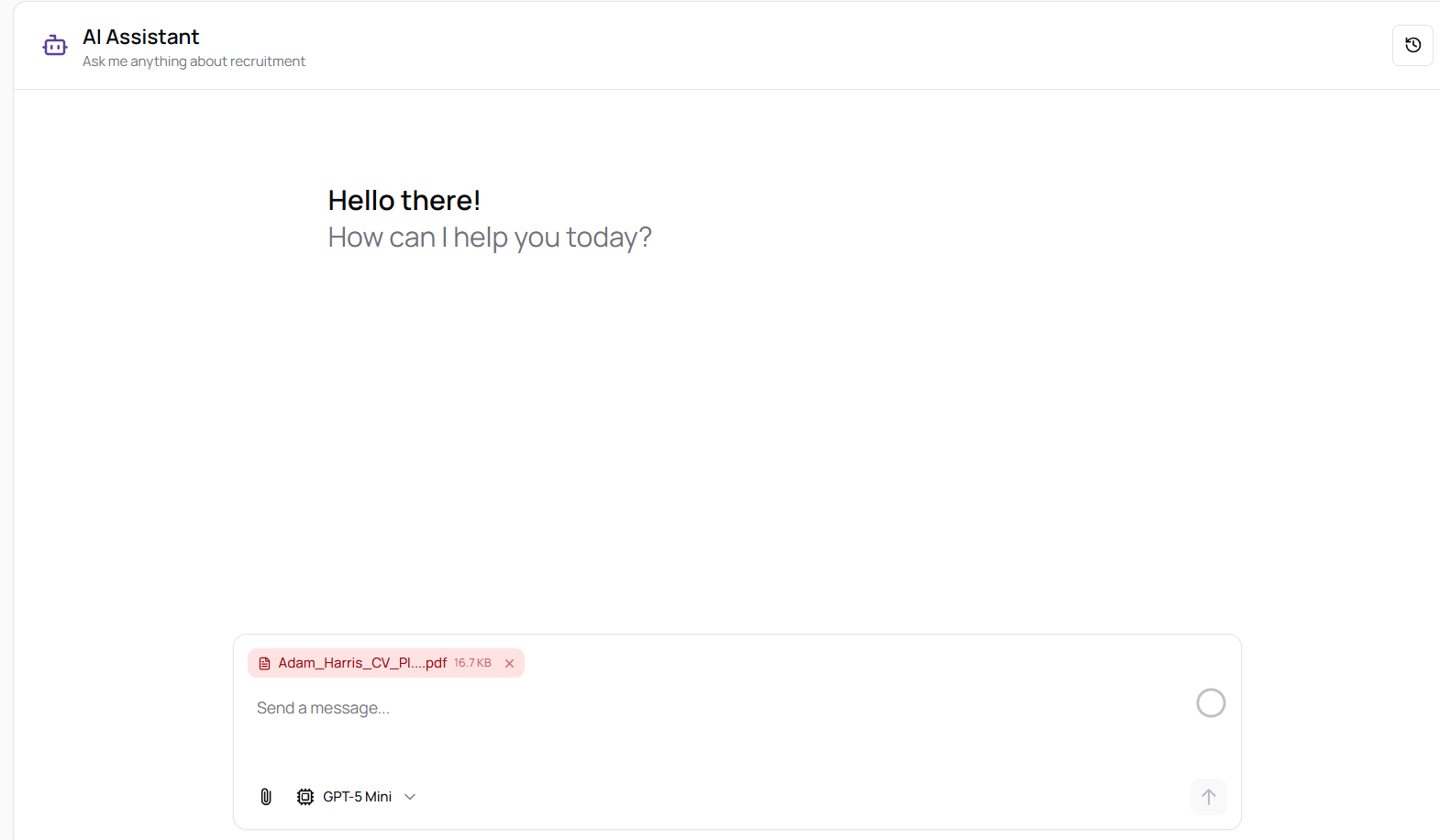
AI Assistant chat with a PDF attached as a compact pill
Qatari Riyal (QAR) as Default Currency
Reflecting Our Primary Market
The salary currency field in the job posting form now defaults to QAR (Qatari Riyal) instead of USD. You can still manually pick a different currency if you need to.
Additionally, when sending an offer letter, you can now choose the currency — so offers can be issued in QAR, USD, or any other supported currency.
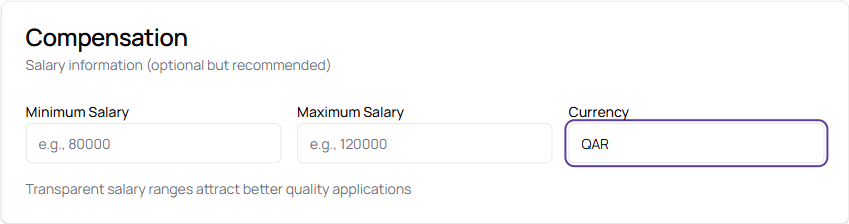
Compensation section showing QAR as the default salary currency
New Fonts, Sidebar, and Arabic Layout Fixes
A Cleaner, More Polished Interface
Typography:
- New modern fonts throughout the app for better readability and brand consistency
Sidebar:
- Navigation icons are now visible even when the sidebar is collapsed
- Your profile picture now appears in the sidebar (with a fallback if the image fails to load)
- The notification link has been removed from the sidebar — the bell icon in the top bar is now the single place for notifications
Arabic Layout:
- Right-to-left alignment fixes applied across 40+ screens
- Chat messages display correctly in Arabic mode
Sidebar in collapsed mode with visible navigation icons
Interview Scheduling Improvements
Clearer Feedback When Scheduling Interviews
- Clearer empty state — the manual interview assignment dropdown now explains that only shortlisted candidates appear in it
- Connection warnings — if you try to schedule using Teams or Outlook but haven't connected your account in Settings → Connections, a warning now appears
- Better translations — the "Reopen Job" confirmation dialog now displays correctly in both languages
- Confirmation before regenerating interview links — prevents accidental resets with a confirmation dialog
- More reliable meeting links — generation method updated for better reliability
- Fireflies integration fixes — handles edge cases in the webhook
Application Timeline Fix for Rejected Candidates
Correct Progress for Rejected Applications
The Application Journey timeline previously showed all pipeline steps as "completed" for rejected candidates — for example, displaying "6 of 7 steps completed" when the candidate was rejected at step 2. This has been fixed:
- Steps before the rejection show as completed (purple)
- The rejection step shows with a red indicator marking where the candidate was rejected
- Steps after the rejection show as greyed out (upcoming)
- The progress bar and step count now accurately reflect actual progress
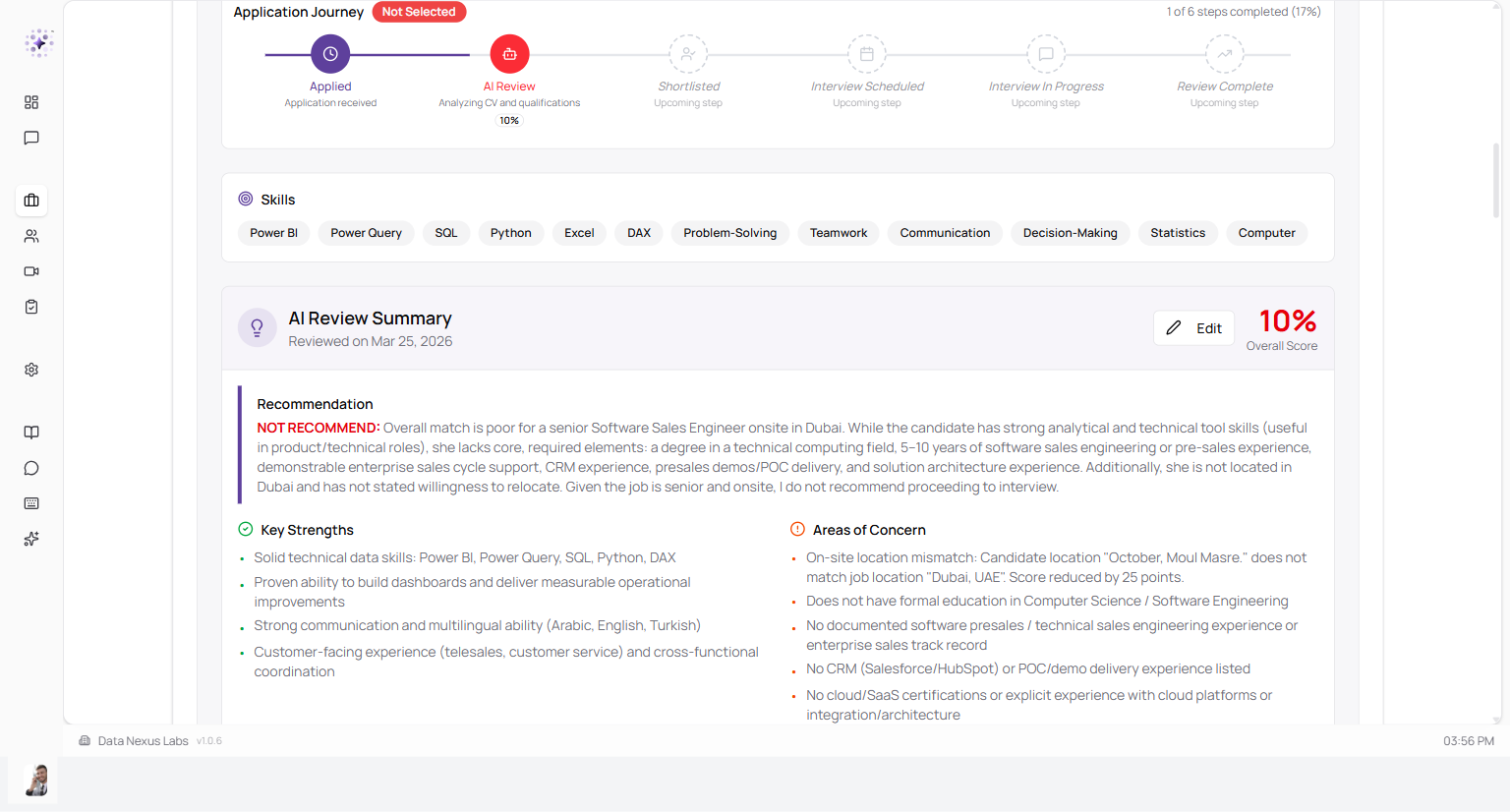
Application Journey for a rejected candidate showing Applied (completed), AI Review (red rejection point), and remaining steps greyed out
Offer Letter Download Fix
Downloads Now Work Reliably
The offer letter download flow has been completely fixed:
1. Secure cloud storage — offer letters are now safely stored in the cloud
2. Secure downloads — download links are generated securely without exposing private URLs
3. Download button works — for all offer letter types
4. Remove Application hidden after offer — prevents accidental deletion of candidates who have already received an offer
5. Single "Offer Sent" badge — hired candidates with offers now show a single "Offer Sent" badge instead of showing both "Hired" and "Offer Sent"
"Notes" Renamed to "Cover Letter"
Clearer Field Name on the Application Form
The "Notes" field in the Apply Now dialog has been renamed to "Cover Letter" to better reflect what candidates are expected to write there.
AI Chat & Assistant Fixes
- Removed incorrect social media message — the AI no longer asks you about posting to social media after creating a job (the feature wasn't actually connected)
- Fixed chat widget crash when loading notifications
- Fixed chat page loading issues
- Better error handling in the job creation flow
App Version Now Shown in the Interface
See Which Version You're On
The application version number is now displayed in the status bar so you can easily see which release you're on. The version updates automatically with each release — no manual updates needed.
Security & Reliability
Making Truepick More Secure and Stable
Security:
- Patched a critical security vulnerability
- Camera and microphone permissions updated for reliable interview access
- Upgraded interview voice infrastructure
- Better error tracking for faster issue resolution
Reliability:
- Fixed several production issues that could cause pages to fail to load
- Background jobs can no longer get stuck in "processing" — they always complete or fail cleanly, and you'll see failures immediately instead of waiting
- Resolved memory issues with live updates
- Improved PDF report generation for production
- Many behind-the-scenes fixes for stability
Improved AI Models
Better AI for Better Results
- Interview questions — now generated by a more powerful AI model, producing more thoughtful and context-aware questions tailored to each role
- Interview scoring — rebalanced to give more weight to how the candidate actually performed in the interview, rather than other factors
- Chat quality logging — added so we can monitor and continually improve the AI's responses
Released on April 11, 2026
View all releases